
1. Start the Connection
-
Click the “Connect lock” button in the app.
-
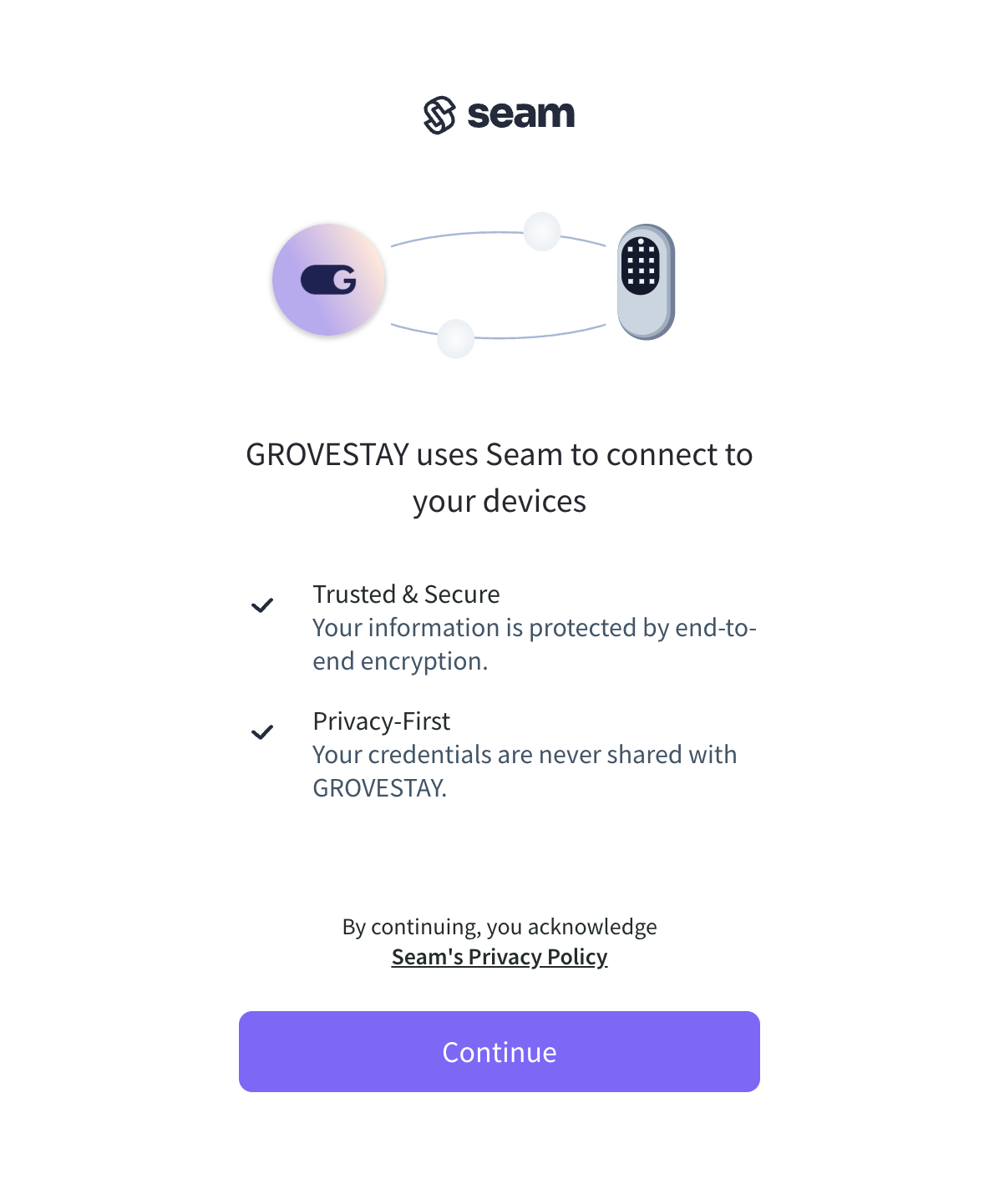
You will be redirected to the Seam.co connection screen.
-
Click Continue.
-
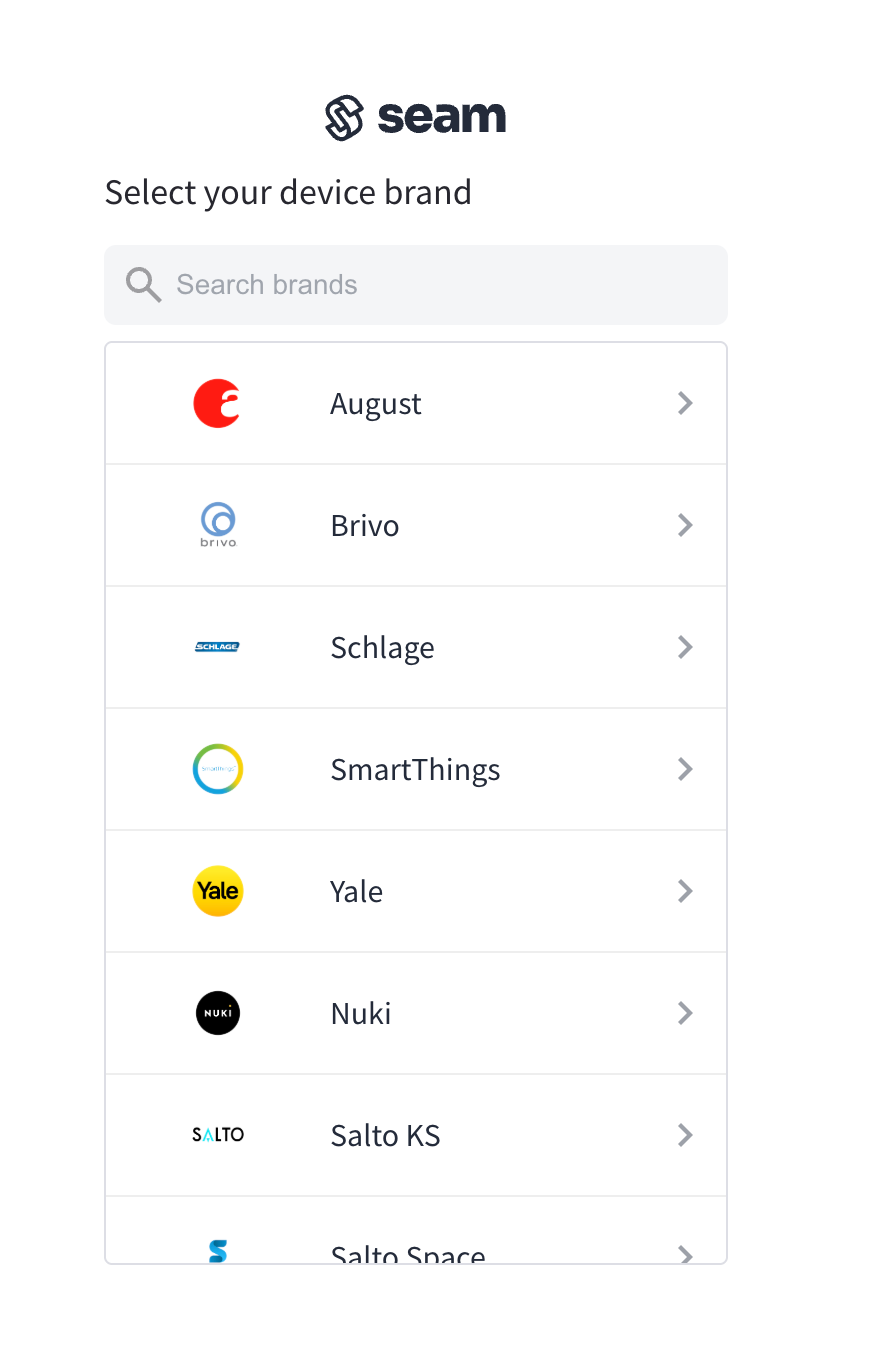
Select the brand of your lock from the list of supported devices.
2. Check Device Compatibility
Before proceeding, make sure your lock model is supported:
👉 https://www.seam.co/supported-devices-and-systems
If your lock is not supported:
-
Contact us and let us know the model
-
If you’d like to replace the lock, our support team will help you choose and set up a compatible device
3. Sign In to Your Lock Account
After choosing the brand, you will be redirected to its login page.
-
Enter your account credentials
-
Your login information is secure — Grovestay does not store your credentials
-
These credentials are required only to link your lock account with Seam.co
⚠️ Make sure your lock is already connected to Wi-Fi.
4. Complete the Connection
Once the integration is successful:
-
Your locks will appear in the Grovestay web app
-
Each lock will show the same name it has in your lock’s original app
-
Verify the lock type (apartment, block, building, elevator, gate)
After this, your lock is fully ready to connect and use.